Picture a 6K monitor. Four terminal panes, edge to edge.
Top-left: claude --print mode, watching Sentry for new error groups and posting them to Slack.
Four agents working at once. One human conducting.
That’s the setup. This chapter is how to get there.
Why parallel sessions matter#
A single CC session is a single thread. You give it a task, you wait. While CC reads files in repo A, your brain has nothing useful to do — the work is real, but the cognitive load on you is zero.
So open a second session in repo B. Give it a task. Swap back to A when it’s done thinking.
You stop being the bottleneck. The model is fast. Disk I/O is fast. The slow part has been you, sitting still while one terminal chews. Run two sessions and your throughput roughly doubles. Run four and it doesn’t quadruple — you cap out around 3–4× because you’re the conductor — but you’re still doing the work of a small team. By the time you’re at six or eight sessions, the limit is attention discipline, not tooling.
The terminal trinity — pick one and live in it#
You need a terminal that doesn’t wheeze when you open ten tabs. Three real choices:
- iTerm2 (Mac). Splits, profiles, named tabs, search through scrollback. Hotkey window. Most operators land here. Free, mature, boring in the good way.
- WezTerm. Cross-platform, GPU-accelerated, scriptable in Lua. If you like config files and want one terminal across Mac/Linux/Windows, this is it.
- Ghostty. Newer, very fast, opinionated. Worth a look if you’re starting fresh and don’t already have iTerm muscle memory.
Skip Terminal.app. It’s fine for opening one shell to check disk space. It falls over the moment you want multiple sessions, splits, or scrollback search.
I run iTerm2. Switching now would cost more than it’d give back.
tmux — the multiplier#
Two sentences: tmux is a terminal multiplexer. One process you connect to that holds many shells inside it.
Why it matters: sessions survive when you close the terminal window. You can split panes inside one window. You can detach and reattach from anywhere — including SSH’d into a server from your phone in an Uber.
The five commands you actually need:
tmux new -s belkins        # create a session called "belkins"
tmux ls                    # list running sessions
tmux a -t belkins          # attach to it

# Inside tmux:
Ctrl-b "                   # split horizontally
Ctrl-b %                   # split vertically
Ctrl-b arrow               # move between panes
Ctrl-b d                   # detach (session keeps running)
Ctrl-b c                   # new window
Ctrl-b <number>            # jump to window
That’s it. Tmux has 50 other shortcuts. Ignore them until you’ve used these 200 times. The temptation to over-configure tmux is the single biggest time sink in this chapter — every operator I know who tried to learn “all of tmux” first ended up reading config files instead of shipping. Learn five commands, ship for two weeks, then add what you actually missed.
A real layout — mine#
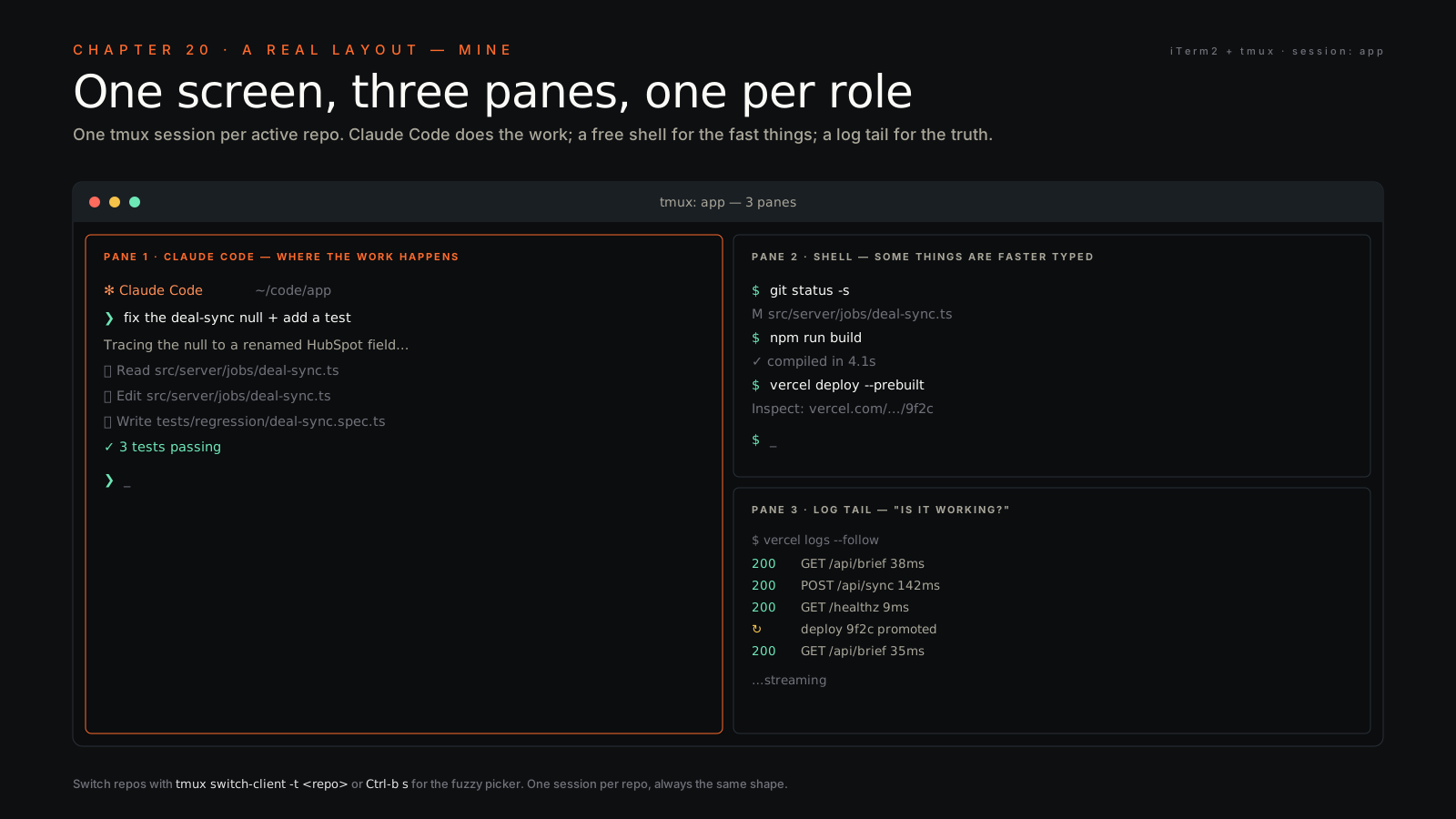
One tmux session per active repo. Inside each session, three windows:
- Window 1: claude — the CC session. This is where the work happens.
- Window 2: a free shell for git, npm, vercel, ad-hoc commands. Don’t make CC do everything; some things are faster typed.
- Window 3: a log tail —
vercel logs --follow,tail -fon a local log, or whatever surfaces the “is it working” signal for that repo.
Switch repos with tmux switch-client -t <repo> or just Ctrl-b s for the picker. The picker is underrated — it’s a fuzzy list of every running session, and you fly through it with arrow keys.
Naming sessions like you mean it#
Don’t run anonymous sessions. When you have six sessions open and need to attach back, tmux ls showing 0:, 1:, 2: is useless. Worse — it’s actively dangerous, because you’ll guess wrong and start typing the Belkins migration into the Folderly shell.
Use the repo name. Use the company name. Use the project. belkins, folderly-deliverability, newsletter-issue-47, diagnostics-prod. Treat sessions like tabs in a browser — you’d never have six unnamed tabs.
This is a discipline thing, not a tooling thing. Five seconds of typing on session create saves twenty minutes of “wait, which one was the staging one?” later.
Forking workflows with git worktrees#
When two CC sessions work on the same repo, they fight over your filesystem. One is on main, the other wants to be on feature-x, and every checkout breaks the other agent’s working tree.
Solution: git .git.
cd /path/to/repo
git worktree add ../repo-feature-x feature-x
git worktree add ../repo-bugfix-y bugfix-y
# Now you have two physical folders, each on its own branch,
# sharing the same git history. CC sessions can't conflict.
This is the single most useful Unix trick when running parallel CC sessions. It’s been in git since 2015 and almost nobody uses it. You can have a CC session on main running tests, another on feature-x writing code, and a third on bugfix-y cleaning up a hotfix — three folders, three branches, one shared history. Zero collisions.
When you’re done with a worktree: git worktree remove ../repo-feature-x. Done.
The same isolation is what lets a second agent run churn against your repo without touching the tree you’re working in live — a worktree per fix is how Codex on a loop opens six PRs while you stay mid-feature in your own checkout.
Headless sessions in the same setup#
One pane runs claude --print against a long-poll loop or a cron-style watcher. Another pane runs interactive Claude. They don’t interfere — different processes, different working directories, different tasks.
Aliases and quickstart functions you’ll actually use#
Drop these in ~/.zshrc or ~/.bashrc:
alias cc='claude'
alias ccp='claude --print'
alias ccr='claude --resume'
alias ccc='claude --continue'

# Open Claude Code in a repo with a specific tmux layout
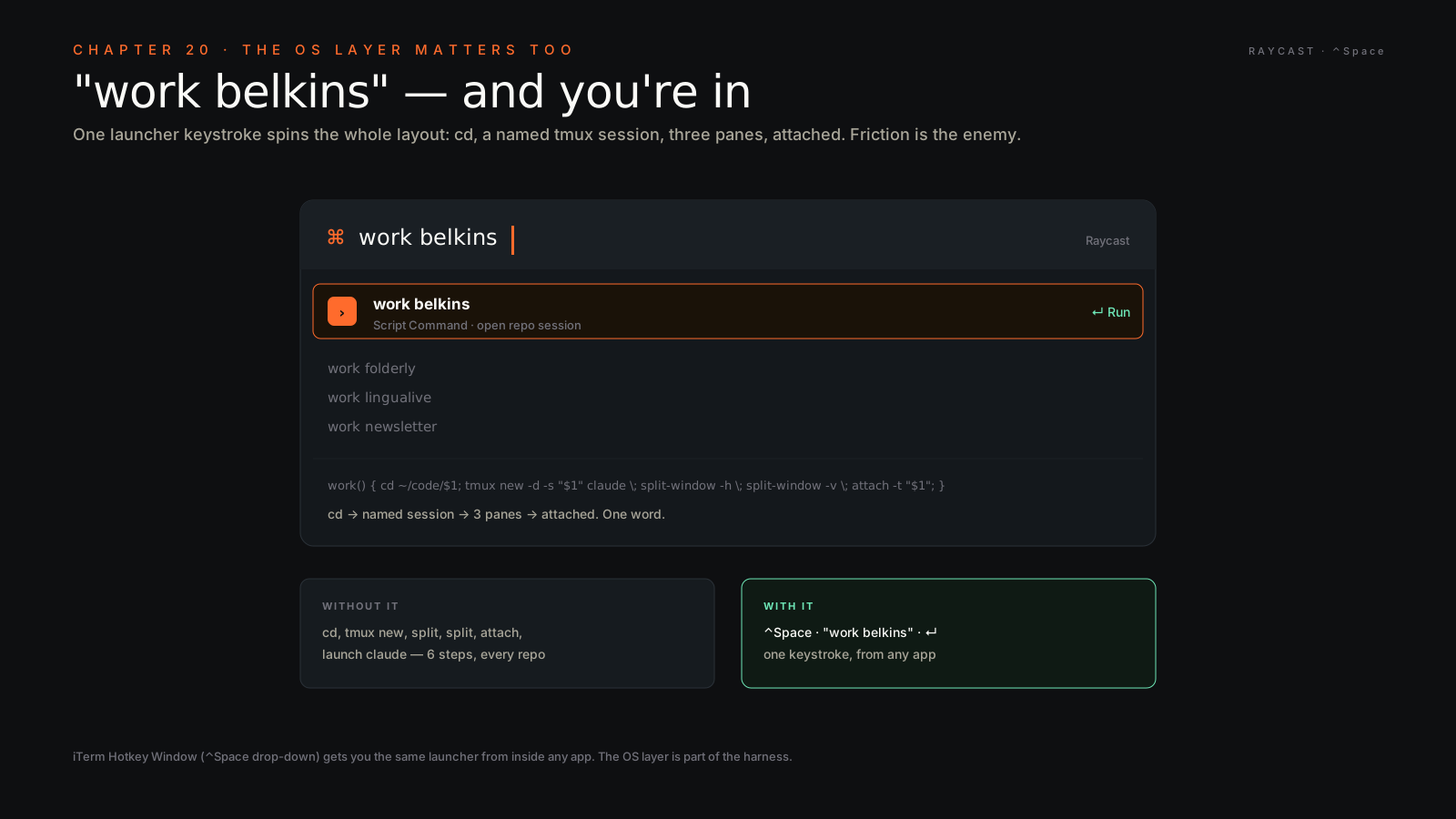
work() {
  local repo="$1"
  cd "$HOME/code/$repo" || return
  tmux new -d -s "$repo" "claude" \; \
    split-window -h \; \
    split-window -v \; \
    attach -t "$repo"
}
# Then `work belkins` puts you in a 3-pane Belkins workspace instantly.
work belkins and you’re in. work folderly and you’ve got a second workspace running. The function is twelve lines and it changes how the day feels.
Mac power-user adjacent#
The terminal isn’t the whole story. The OS layer matters too:
- Raycast — window snapping, clipboard history, snippet expansion, custom script commands. The free tier is enough.
- AeroSpace or yabai — tiling window management, so the four-pane monitor I described stays four panes when you open Slack.
- Karabiner — remap caps-lock to control. Your tmux prefix is
Ctrl-b; control lives on the home row now. This change alone is worth ten minutes of setup. - iTerm Hotkey Window — a drop-down terminal on a key combo.
Ctrl-Spacefor instant terminal anywhere. Triggers from any app, vanishes when you’re done.
The conductor’s discipline#
Running six CC sessions doesn’t make you six times as productive. It makes you the bottleneck if you don’t structure attention. Four rules I actually follow:
- One primary session at a time. Eyes on one, glances at the others. Don’t try to read three streams of model output simultaneously — you’ll absorb none of them.
- Five-minute timer between context switches. Don’t ping-pong faster than that or you lose your thread. Set a literal timer if you have to.
- Color-code by company. Belkins = blue prompt. Folderly = orange. Newsletter = green. Diagnostics = red. Set it in the iTerm profile per session. Visual cue prevents “oh shit, I just pushed Belkins code to Folderly’s main.”
- Commit before switching. Always. Even WIP.
git add -A && git commit -m "wip"costs you nothing and saves you from “where was I?” when you come back two hours later.
Closing — the real unlock#
When you’re running six sessions, you stop typing prompts and start dispatching jobs. The terminal becomes an org chart. Each pane is a department — engineering, marketing, ops, support. You’re the CEO. The tmux session list is your team meeting.
The first time you watch four agents work at once and realize you wrote zero lines of code in the last hour but four PRs landed, the whole thing clicks. You’re not coding anymore. You’re directing.
That’s the job now.