If you’ve got 10 minutes and a terminal, you can be running
I’m not going to philosophize. The previous chapters told you why this matters. This one gets you on the keyboard.
Pre-flight (60 seconds)#
Before you type a single command, confirm four things:
- Node.js 18 or newer. Open your terminal and run
node --version. If you see v18.x.x or higher, you’re fine. If you see “command not found,” install Node from nodejs.org first — pick the LTS build, accept the defaults, come back. - A code repo to play in. Any git repo will do. A side project, a fork, an old README-only repo — Claude Code is happiest when it has a directory with files. Don’t run it inside
~or/. - A Claude plan or an API key. A Pro or Max subscription is the simplest path — Claude Code authenticates against your Anthropic account, no billing setup needed. If you’re scripting in CI or automation, you can use an
ANTHROPIC_API_KEYinstead. Console accounts and supported cloud providers also work. - A terminal you don’t fear. macOS Terminal, iTerm, Warp, Windows Terminal, anything. You don’t need to be a CLI wizard. You need to be willing to read what comes back.
Got all four? Good. Onward.
Install (60 seconds)#
The canonical install is one command:
npm install -g @anthropic-ai/claude-code
claude --version
That’s it. The npm package pulls down a per-platform native binary — it’s not actually a Node program at runtime, npm is just the delivery mechanism. The claude --version line is your sanity check; if you see a version number, you’re done.
If you don’t have npm globally, alternatives work fine:
pnpm add -g @anthropic-ai/claude-code
# or
bun add -g @anthropic-ai/claude-code
On macOS you can also use Homebrew (brew install claude-code), and Linux has apt/dnf/apk packages from the official repo. Pick whichever your machine already trusts. The binary is the same across all of them.
First run (90 seconds)#
Now cd into a real repo. Doesn’t matter which one — pick a project you know well so you can tell when Claude is right and when it’s bluffing.
cd ~/code/my-side-project
claude
First launch triggers OAuth. Your browser opens, you sign in to your Anthropic account, you click “authorize,” the page tells you to come back to the terminal. Done. Claude Code stores the token locally; you won’t see this flow again unless you log out.
If you’re in headless or CI mode and can’t open a browser, set ANTHROPIC_API_KEY before launching and Claude Code will use that instead.
You’ll land on a welcome screen. Three things to notice:
- The cwd indicator — top-left, showing the directory you launched from. That’s the project Claude is “in.”
- The model picker — usually defaulting to the current Sonnet or Opus. You can switch with
/modellater. - The prompt. A single text box waiting for you. Type
/helpto see what’s available; type/resumeto pick up a previous session.
You’re in.
/init — generate a starter CLAUDE.md (90 seconds)#
Type /init. Press enter. Walk away for 30 seconds.
Claude Code reads your repo — directory tree, package files, README, top-level source files — and generates a CLAUDE.md at the project root. This file is the persistent context that gets loaded every time you run claude in this directory. Think of it as the briefing memo you’d hand a new hire on day one.
Never ship the auto-generated version unedited. It’s a starting point, not a finish line. Open it, read every line, and add what the auto pass missed:
- Stack. Languages, frameworks, the actual versions (not “Node” — “Node 20, TypeScript 5.4, Next.js 14”).
- Conventions. Naming, folder layout, where tests live, how commits are formatted.
- Do-not-touch zones. Generated files, vendored dependencies, migrations that have already shipped.
- Lint and test commands. The exact commands.
pnpm lint,pnpm test,pnpm typecheck— written out so Claude can run them itself. - Anything weird. Every codebase has a “we tried that, it didn’t work, don’t do it again” — write it down here.
Commit CLAUDE.md. It’s a project file now.
The first useful task (3 minutes)#
Time to actually use the thing. Here’s the prompt I give every new repo:
Summarize this repo’s architecture in 200 words. Cover: what it does, the main entry points, how data flows through it, and any unusual patterns. Don’t write any code yet.
Type that into the prompt and hit enter. Watch what happens.
Claude reads the directory, opens the files it thinks matter, sometimes runs a tool like grep or find to confirm a hunch, and writes a summary back at you. It’s not generating code — it’s reading your code, the way a senior engineer would on day one.
When you’re ready to ask for an actual change — “add a comment to the top of index.ts explaining what this file does” — Claude will draft the edit and show you a diff preview before touching disk. You see the exact lines being added, the exact lines being removed, and a prompt: approve, reject, or modify.
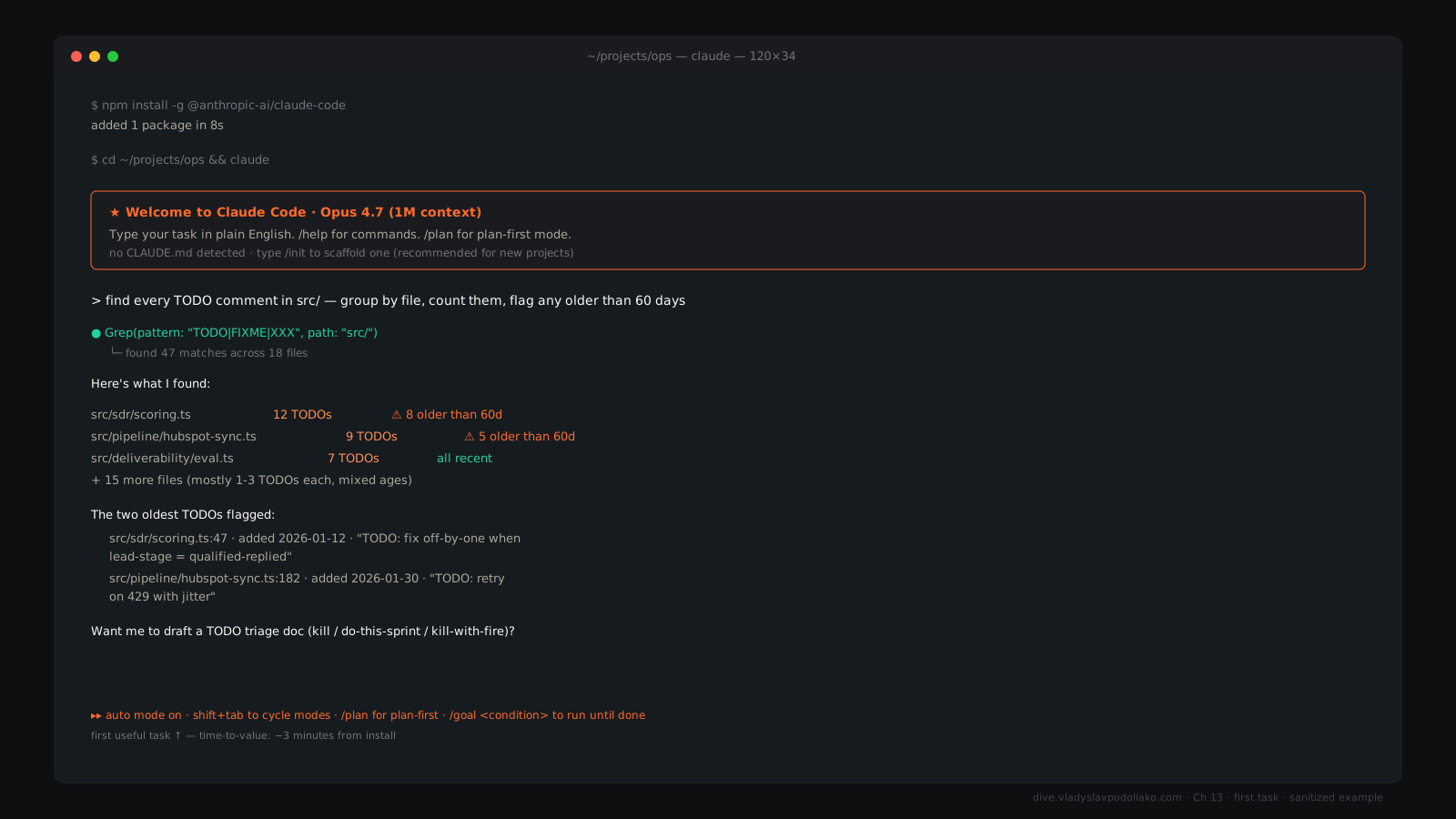
This is the loop. Read, propose, approve, write. Repeat.
Approve / reject loop#
Every Edit, Write, and Bash call asks for permission by default. You see what Claude wants to do; you press y or n. Sometimes there’s a third option: “always allow this kind of action in this project,” which writes the rule into your settings so you stop being asked about read-only file lookups.
Two principles:
- Read everything before you approve it. Especially shell commands. A shell command can do anything; a file edit can only do what’s in the diff.
- Never run
--dangerously-skip-permissionsuntil you understand exactly what’s about to happen. That flag turns off the gate. It’s useful for sandboxed swarm work where the agent is sealed inside a container or a tmpfs. It is the wrong default for your laptop. More on this in Chapter 15.
The five slash commands you’ll use today#
Memorize these five before anything else:
/init— generate (or regenerate) CLAUDE.md./clear— wipe the conversation context, keep the session open. Use it between unrelated tasks./compact— summarize the long history into a short brief, free up context. Use it when you’re deep in a session and the model is starting to drift./cost— see what this session has cost you. Sanity check before you fall asleep withclauderunning./help— list every other slash command. There are a lot.
Everything else — /model, /agents, /mcp, /resume, /review — you’ll learn over the next week. These five are enough to operate.
Adding your first MCP server (2 minutes)#
The fastest hello-world is the filesystem server. Create a file called .mcp.json at the root of your repo:
{
  "mcpServers": {
    "filesystem": {
      "command": "npx",
      "args": ["-y", "@modelcontextprotocol/server-filesystem", "/path/to/folder"]
    }
  }
}
Replace /path/to/folder with a directory you want Claude to be able to inspect. Save the file. Quit claude. Relaunch it.
Inside Claude Code, type /mcp. You should see filesystem listed and connected. Now ask Claude: “List the files in the folder we just gave you access to.” If you get back a real listing, you’re done. If you don’t, check the path is absolute and the folder exists.
This same pattern — one entry in .mcp.json, restart, /mcp to verify — works for every MCP server you’ll ever install. Belkins runs HubSpot and Slack through MCP. The Newsletter pulls Substack stats and Ahrefs through MCP. Folderly’s email infra is wired up the same way. The protocol is the same; only the server changes.
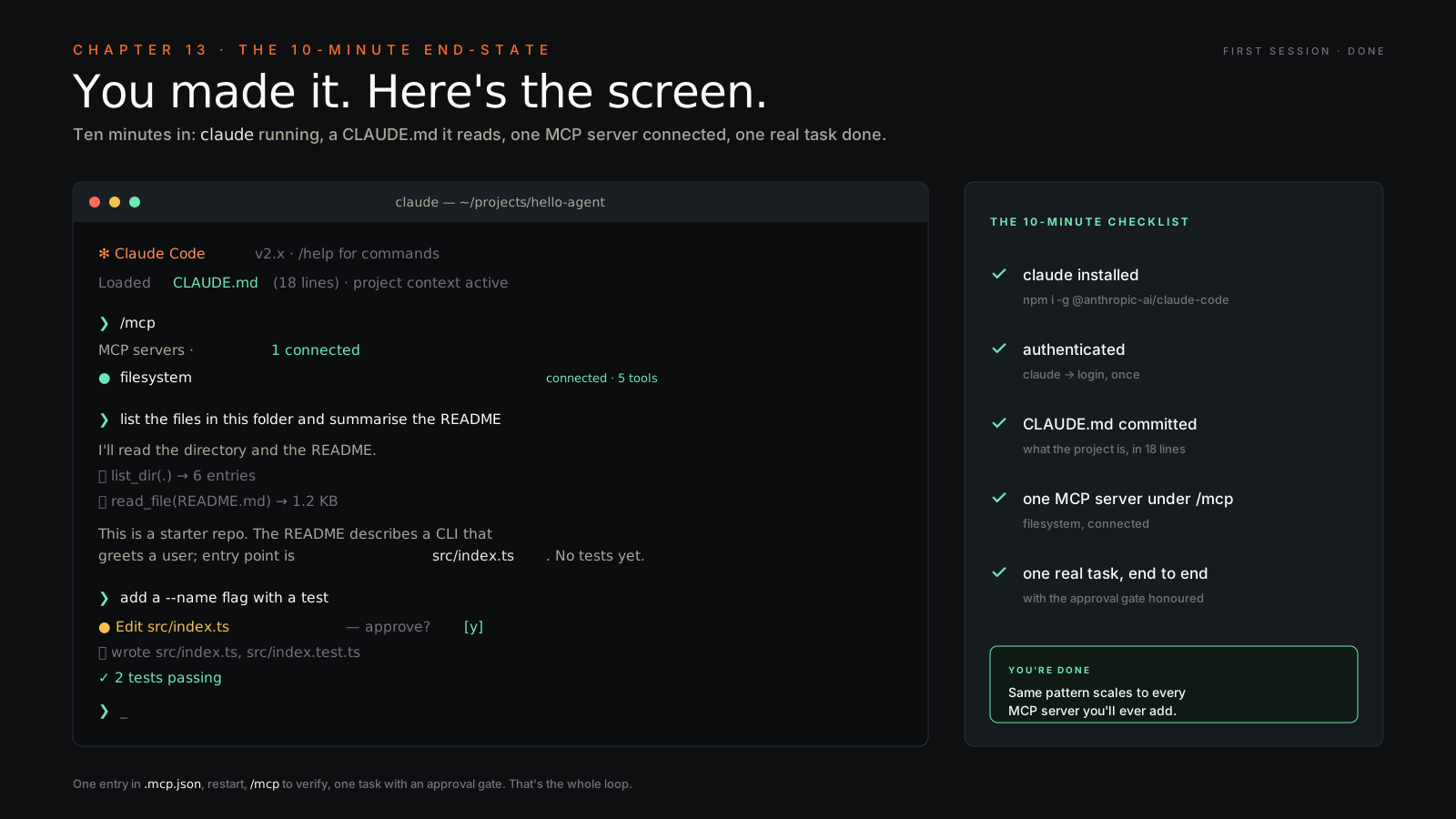
The 10-minute checklist#
If you followed along, you should now have:
- Claude Code installed and
claude --versionreturning a number. - Authenticated against your Anthropic plan or API key.
- A
CLAUDE.mdat the root of your repo, edited and committed. - One MCP server configured in
.mcp.jsonand visible under/mcp. - One real task — a summary, a comment, a small refactor — completed end to end with the approval gate working.
If any of those five is shaky, fix it now before you turn the page. The rest of the book assumes the foundation is solid.
What to do next#
Turn to Chapter 14 for the cheat sheet — every slash command, every settings flag, every config file path you’ll need over the next month. Read Chapter 15 before you touch --dangerously-skip-permissions or run Claude Code on production credentials. And revisit Chapter 6 with fresh eyes now that the install actually works — the